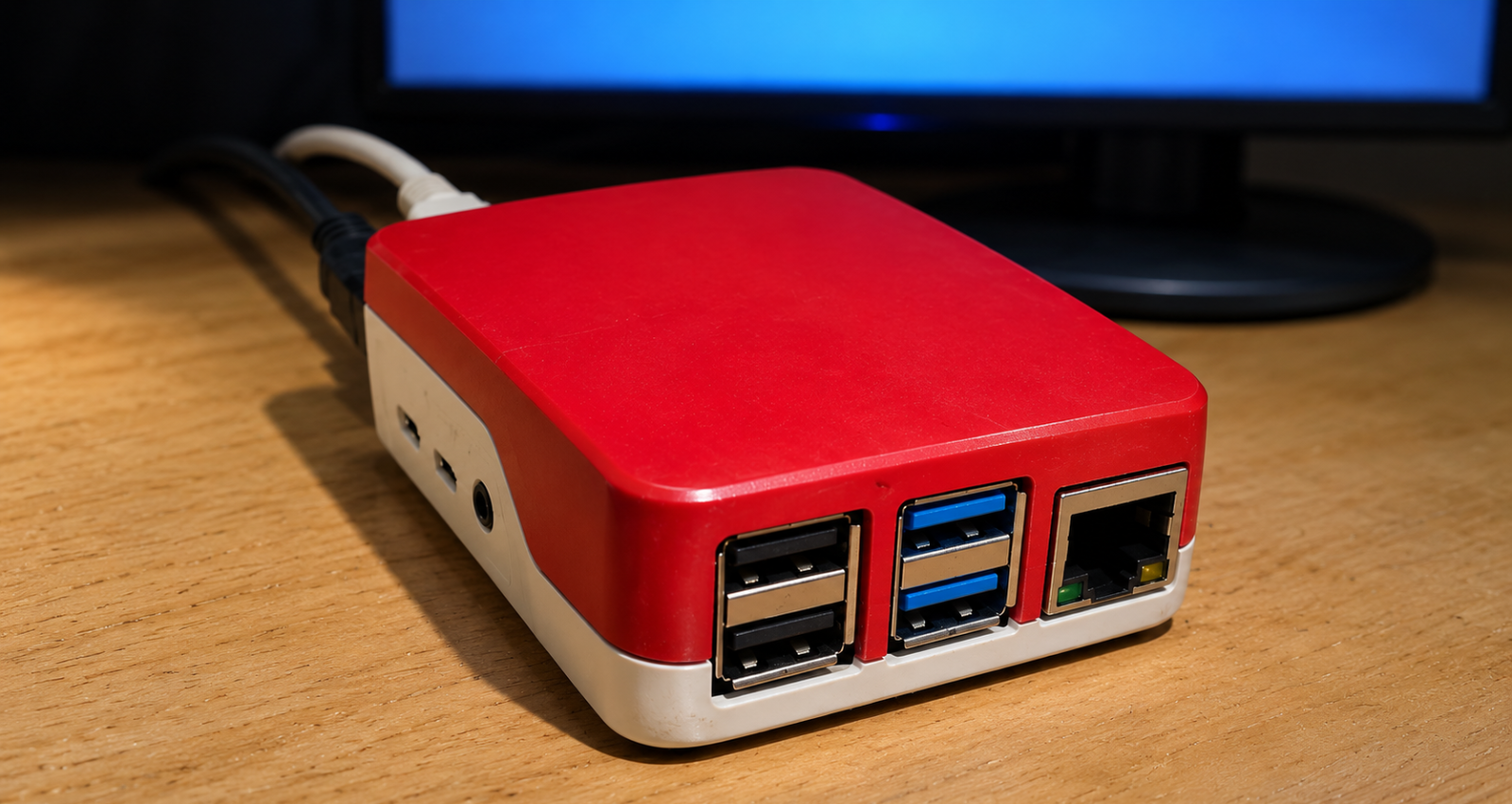
Install the 64-bit Desktop edition of Raspberry Pi OS on any Pi 3, 4 or 5 family board with a screen attached. The one Pi 3 where I'd also consider 32-bit is the Pi 3A+, which has 512MB of RAM. Use 64-bit Lite on any Pi that runs headless as a server, and 32-bit Lite on the Pi 1, Pi 2 and original Zero. Leave other systems for Pis with one specific job or a need Raspberry Pi OS does not meet. Raspberry Pi OS moved from Debian Bookworm to Debian Trixie in October 2025, so advice written for older releases may not match a current image.
Desktop, Lite or Full
Raspberry Pi's download page now offers three editions (Desktop, Full and Lite), each in a 64-bit and a 32-bit build. All six are ports of Debian 13 (trixie), and each one is listed with a download size and the storage it needs. Lite has no desktop environment. Desktop adds one, and Full adds a set of recommended applications on top of that.
Desktop is the edition Raspberry Pi Imager recommends, and I think that's the right call for anyone plugging a Pi into a monitor. The 64-bit Desktop image is listed as a 1,301 MB download that needs 6,432 MB of storage. Full adds LibreOffice, KiCad, Scratch and more, which takes it to a 1,969 MB download and 9,504 MB of storage. Full does save you installing those programs one at a time. But the bundle includes specialist tools such as KiCad, a circuit design program, so I think Full is worth its extra storage only if you want those programs on the card. Everyone else should install Desktop.
Lite goes the other way. It has no desktop at all, only the command line, and it is pitched at headless servers, embedded systems and older models such as the original Pi, Pi 2 and Zero. The 64-bit Lite image is a 525 MB download and needs 2,936 MB of storage, less than half of what Desktop takes. On a Pi that runs as a home server, a sensor logger or anything else reached only over SSH, there is no screen for a desktop to draw on, so Lite is the right image. Choosing it doesn't lock you out of a desktop later, because adding the rpd-wayland-core package turns a Lite install into a Wayland desktop. If you still need to get the image onto the card, our Imager guide covers flashing.

Do you really need 64-bit?
Raspberry Pi's documentation says the 64-bit build is meant for newer models with 64-bit processors, such as the Pi 3, 4 and 5, which can handle more memory. The current 64-bit images list the Pi 3B, 3B+, 3A+, 4B, 400, 5, 500 and 500+, the CM3, CM3+, CM4, CM4S and CM5 Compute Modules, and the Zero 2 W. The 32-bit image is listed for every Raspberry Pi model.
The case for 32-bit on those newer boards rests on two documented points: it uses less memory, and it might be more compatible with older software and hardware. Sure, 32-bit uses less memory, but the image sizes show how modest the gain is, since 32-bit Desktop needs 5,616 MB of storage against 6,432 MB for 64-bit Desktop, and downloads at 1,235 MB against 1,301 MB. In a comment on the Bookworm announcement, Raspberry Pi's Simon Long said the company recommends the 64-bit version on the higher-powered platforms, "and that includes Pi 4." The Pi 3 boards are on the 64-bit list as well, and the Pi 3B+ has 1GB of RAM while the Pi 3A+ has 512MB, the same as the Zero 2 W. I think 64-bit is still the better default on the 1GB 3B+, while the 3A+ is a closer call. The other exception is an old add-on board or program that only works on 32-bit, which is where the "more compatible" wording applies.
On the oldest hardware, 32-bit is the only choice. The original Pi, the Pi 2 and the first Zero are not on the 64-bit list, and Lite is the edition suggested for them, so 32-bit Lite, a 543 MB download needing 2,656 MB of storage, is the image to install. Both builds list the Zero 2 W, so it falls between the two groups and can run either. If you haven't bought a board yet, our Zero 2 W comparison weighs it against the older Zeros.

Moving from Bookworm to Trixie
Bookworm, released in 2023, moved the desktop to Wayland with the Wayfire compositor on the Pi 4 and 5. It also made NetworkManager the default network controller in place of dhcpcd. Trixie, announced on 2 October 2025, added a Control Centre app that replaces the old collection of preferences applications. It also brought a 64-bit time value that avoids the 2038 overflow.
Raspberry Pi's Trixie announcement says the company does "not recommend or support attempting to upgrade a running Bookworm image" and asks owners to flash a clean Trixie image instead. On a working server, that means backing up the data and configuration, writing a fresh card and then restoring everything.
You don't have to move at once. Legacy images based on Bookworm can still be downloaded, on kernel 6.12, in 64-bit and 32-bit, and they are described as having security updates. When Trixie launched, Raspberry Pi said the packages for the AI HAT+ and AI Kit, the TV HAT and Wolfram Mathematica were not yet available in Trixie, and it told owners of those to stay on Bookworm. That was the position in October 2025, so if you have an AI HAT+, check the current package list before wiping a card that already works.
When is another OS a better choice than Raspberry Pi OS?
Ubuntu 26.04.1 LTS comes for the Pi as a 2.6GB Desktop image and a 1.1GB Server image. It is certified on the Pi 5, Pi 4B and CM4, while the Pi 400 and Zero 2 W are supported but not marked certified. If every other machine you run is on Ubuntu, having one familiar system has real value. But the Desktop image needs at least 4GB of RAM and 16GB of storage, which rules out every Pi with less memory than that. The downloads are arm64 only, which also leaves out the boards that need 32-bit. I think a Pi 4 or 5 is better served by its own OS on the desktop. Ubuntu Server, at less than half the size of Ubuntu Desktop, is the easier case to make.
DietPi is the stronger rival to Lite. It describes itself as an extremely lightweight Debian OS, tuned for minimal CPU and RAM use. It publishes images for the Pi 1 and Zero, the Pi 2, 3, 4 and Zero 2 group, and the Pi 5, so it covers older boards that Ubuntu leaves out. DietPi-Software installs and optimises popular software, DietPi-Config and DietPi-Backup handle setup and backups, and a dietpi.txt file allows fully automated installs. If you rebuild the same server often, that automation is a good reason to pick it over Lite. For a box you set up once, Lite is the simpler choice, with Raspberry Pi's own support behind it.
Batocera and LibreELEC are built for one job each. Batocera is a free, open-source retro-gaming system. Its wiki board guide still describes Pi 5 support as beta and Zero 2 support as coming. It rates the Pi 4 as running up to the fifth generation near perfectly, the Pi 3 as running up to the fifth generation and the Pi Zero up to the fourth. LibreELEC is a non-profit distribution optimised for the Kodi media centre, now at version 12.2, with a 12.2.1 image for the Pi 5.

So what should you install on your Pi?
On the Pi 3 and newer boards and the Compute Modules listed for 64-bit, install 64-bit Desktop with a screen and 64-bit Lite without one, reached over SSH or Raspberry Pi Connect. On the 512MB Pi 3A+, I'd weigh the 32-bit build first. Full belongs only where you want LibreOffice, KiCad and Scratch installed from the start. If your AI HAT+ software still needs Bookworm, use the Legacy 64-bit image. The Zero 2 W should run Lite, in either build, while the original Pi, Pi 2 and Zero take 32-bit Lite, or DietPi if you want its installer and automation. A Pi that will only play games or run Kodi under a TV is the one case where I'd skip the official OS for Batocera or LibreELEC.

I write about the Raspberry Pi and the small AI projects people try to squeeze onto cheap boards. I live in Valparaíso, a short walk from the Ascensor Artillería.
16 articles →